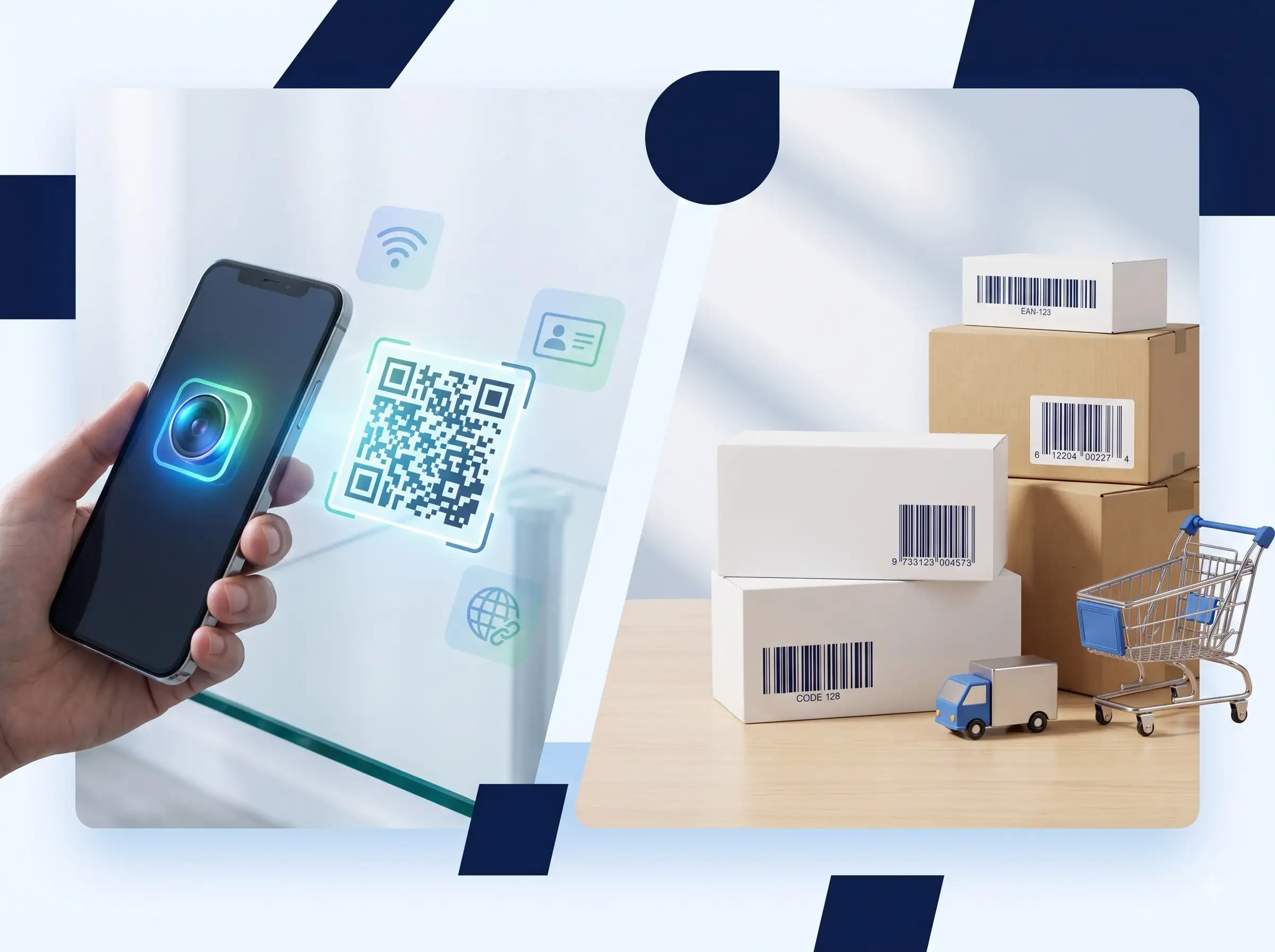
A QR code is convenient because it turns a printed square into a link, Wi-Fi setup, contact card, menu, or payment flow. The trade-off is that you may not know the destination until your camera reads it. Treat the QR code as a shortcut to inspect?not as proof that a page or request is legitimate.
This checklist is for people scanning codes and for businesses creating them. It focuses on practical habits: preview the destination, verify the domain, avoid unexpected requests, and test printed codes before distributing them.
Before you scan a QR code
- Consider where the code came from. A code on a trusted product or your own printed material is different from a sticker placed over a restaurant menu or parking sign.
- Preview the destination. Most phone cameras show the link before opening it. Read the domain carefully instead of tapping automatically.
- Check the actual domain. Look for misspellings, extra words, odd subdomains, or a lookalike spelling. The registered domain is the meaningful part, not just a familiar brand name somewhere in the URL.
- Be careful with shortened links. A short URL hides the final destination. If the context does not explain why it is shortened, do not sign in or provide personal information after opening it.
- Do not install software just because a QR page asks. A menu, event schedule, or product page should not normally need an unknown app or configuration profile.
- Pause at payment and login screens. A QR code can lead to a convincing imitation page. Navigate to a bank, payment provider, or account through its official app or a known address when something feels unexpected.
- Keep your phone and browser updated. Updates help protect the software that opens links. They do not make every destination safe, so still inspect the page.
- Leave if the page behaves differently than expected. Close it rather than following additional prompts, granting permissions, or entering a password.
For businesses: make QR codes trustworthy
Use a destination you control and can maintain. A printed code can remain in circulation long after a campaign ends, so avoid links that expire unexpectedly. If the destination changes, maintain a redirect at your own domain and make sure the new page remains appropriate.
Label the code with a clear action such as ?View today?s menu? or ?Join guest Wi-Fi.? People are more likely to trust a code when they know what it should open. Do not place a new sticker over an old code without removing or clearly invalidating the original.
Test the exported QR code before printing
- Generate the code from the exact final URL or text.
- Scan the exported image?not only the preview inside the editor.
- Confirm the destination matches the printed call to action.
- Test the code at the size and contrast you plan to print.
- Try it with a second phone or reader when possible.
- Keep enough clear space around the pattern and do not stretch it out of shape.
The WeLuvTools QR Code Generator creates a static QR code from the content you provide. You can create it in your browser, then scan-test the downloaded result before using it. A static code points to the address encoded in it; if that address later changes or stops working, the printed code does not update by itself.
Static QR codes, privacy, and tracking
A QR pattern can contain a direct URL or text, or it can point to a redirect service that records scans. If privacy matters, inspect the domain and consider whether the code passes through a third-party shortener or campaign tracker. The QR image alone does not tell you what tracking the destination website performs.
Quick rule: inspect before you open, verify before you sign in, and test before you print. QR codes make information easier to reach; they do not remove the need to check where that information comes from.