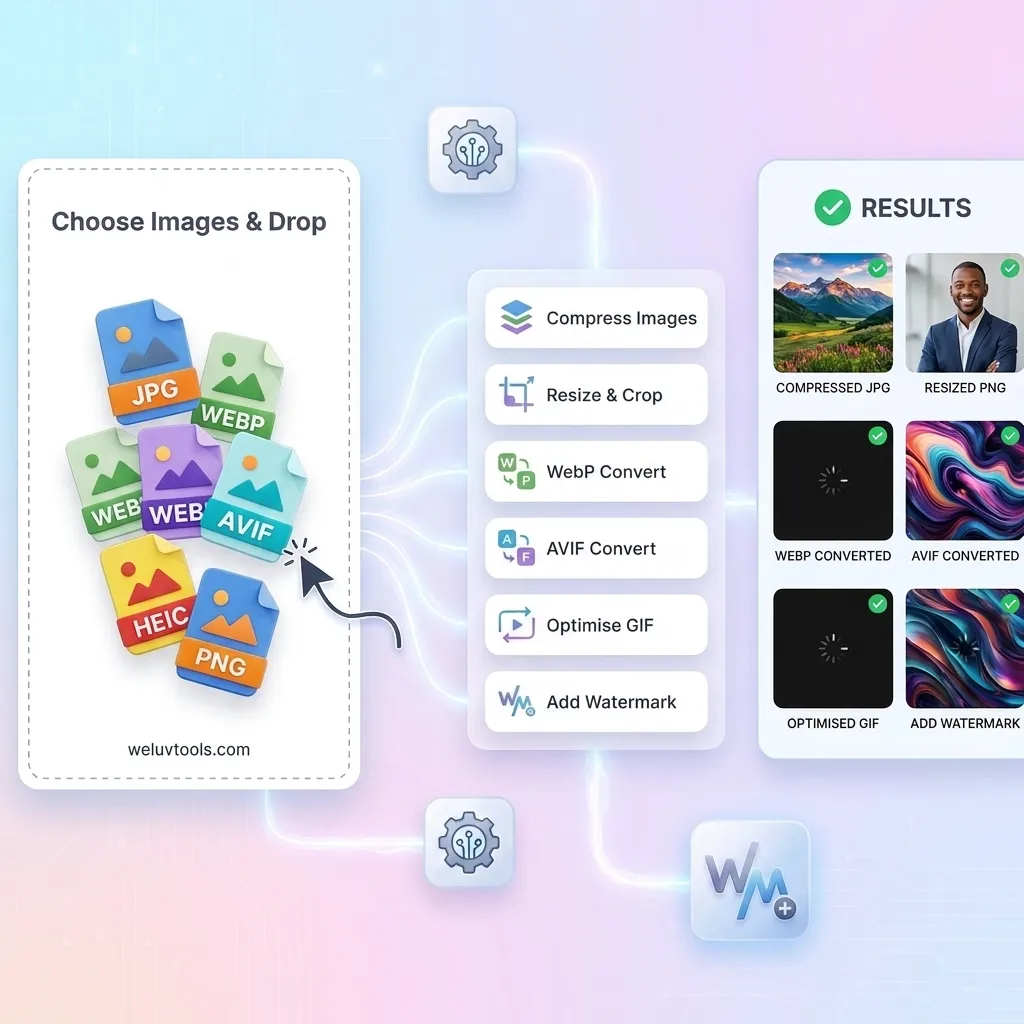
Most image tasks sound simple until you have a folder full of files to prepare. One image needs to be smaller than 100KB, another must fit under 1MB, a third needs to become WebP, and the rest need the same dimensions before you can upload them. That is why people search for an image compressor, an image converter, an image resizer, and a bulk image compressor separately.
The problem is not finding one tool. The problem is switching between five tools, uploading the same files repeatedly, downloading temporary results, renaming everything, and trying to remember which quality setting you used. An all-in-one image compressor solves the workflow instead of solving only one step.
With WeLuvTools, you can add JPG, JPEG, WebP, HEIC, HEIF, PNG, GIF, BMP, TIFF, and TIF images, choose an output format, resize the batch, set quality, and process everything in one browser-based workflow. Your images stay on your device.
Why an all-in-one image compressor is better than single-purpose tools
A single-purpose image compressor is useful when you have one file and one simple goal. But modern image work usually has three or four goals at once: smaller size, the correct format, the correct dimensions, and a repeatable output for many files.
| Task | Single-purpose workflow | All-in-one workflow |
|---|---|---|
| Compress a JPG | Open a compressor, upload, download | Upload, choose quality, process |
| Convert JPG to WebP | Open a second converter and upload again | Choose WebP in the same workflow |
| Resize a batch | Open a resizer and repeat the process | Apply one size rule to the whole batch |
| Prepare images for a website | Switch between several tools and folders | Compress, resize, and convert together |
| Protect private files | Check each service's upload policy | Process locally in your browser |
The advantage is not just fewer clicks. It is consistency. Every image in the batch follows the same output format, dimensions, and quality rules.
What can you do with an image compressor online?
A good image compressor online should cover the real reasons people need smaller images. Here are the most common workflows.
Image compressor to 20KB
Use a 20KB target for tiny thumbnails, verification uploads, lightweight profile images, and forms with strict limits. Start with JPEG for photographs, reduce dimensions first, and then adjust quality. A very large original may need both resizing and compression to reach 20KB without becoming unreadable.
Image compressor to 30KB, 50KB, or 100KB
These targets are common for ID forms, application portals, website thumbnails, and documents that limit upload size. For a 50KB image compressor workflow, export to JPEG for photos or WebP for modern websites. Keep the subject clear, then check the final file size after processing.
An image compressor to 100KB workflow is often a better quality compromise. It gives you enough room for a useful image while still keeping pages, forms, and email attachments light.
Image compressor to 200KB, 500KB, or 1MB
Choose these larger targets when detail matters: product photos, blog images, portfolio work, screenshots, and social graphics. An image compressor to 200KB setting can preserve more detail than a 20KB target, while a 500KB or 1MB limit is useful for hero images and high-resolution photos.
There is no universal best file size. The right target depends on the image dimensions, subject, format, and where you will use it. Compressing a 4000px photo to 20KB is a very different task from compressing a 900px thumbnail to 20KB.
JPG, JPEG, WebP, PNG, HEIC, and TIFF: which format should you choose?
- JPG/JPEG: best for photographs and broad compatibility.
- WebP: a strong default for websites because it balances quality and file size.
- PNG: useful for transparency, screenshots, logos, and graphics with sharp edges.
- HEIC/HEIF: common from phones and useful as an input format when you need a web-friendly export.
- GIF: useful for simple animations and legacy graphics, though animation behavior may vary when exporting to another format.
- BMP: supported as an input for older workflows, but usually worth converting to a smaller modern format.
- TIFF/TIF: useful for print and archival workflows, but usually too large for normal websites. Convert it before publishing online.
For most website images, a practical starting point is WebP at 75-85% quality, with dimensions sized for the page. For transparent graphics, use PNG or a lossless WebP workflow.
How to use the WeLuvTools all-in-one image compressor
- Open the All-in-One Image Tool.
- Add one image or a batch of images. JPG, JPEG, WebP, HEIC, HEIF, PNG, GIF, BMP, TIFF, and TIF are supported as inputs.
- Choose an output format: WebP, PNG, JPEG, or AVIF when your browser supports AVIF encoding.
- Set the quality level. Use a higher setting for photos and a lower setting when the upload limit is strict.
- Choose a resize mode if you need fixed dimensions, a percentage reduction, or a social-media preset.
- Click Process and review the before-and-after file sizes.
- Download each result or download the full batch as a ZIP file.
HEIC and TIFF files are decoded in your browser before processing. They do not need to be uploaded to a remote image service.
Bulk image compressor: the fastest way to prepare a folder
A bulk image compressor is useful for product catalogs, blog uploads, real-estate galleries, app assets, travel photos, and client deliverables. Instead of applying a setting manually to every file, choose one output rule and process the batch together.
For a clean batch workflow, group similar images first. Do not compress tiny thumbnails and full-size hero photos with exactly the same dimensions. Use descriptive file names, choose a predictable output format, and review a few results before publishing the complete set.
How this compares with 11zon, Pi7, iLove, and Caesium-style workflows
People often compare an 11zon image compressor, Pi7 image compressor, iLove image compressor, or Caesium image compressor with other online tools. The important question is not which brand has the biggest button. It is whether the workflow matches your actual task.
- Single-task tools: convenient when you only need one quick compression job.
- PDF-focused suites: useful when the source is a PDF, but not ideal for preparing a mixed image folder.
- Desktop compressors: powerful for recurring professional pipelines, but they require installation and setup.
- All-in-one browser tools: useful when you need compression, conversion, resizing, batch processing, and privacy in one place.
WeLuvTools is designed for the last workflow. It does not try to replace every professional desktop pipeline. It removes the repetitive switching that makes everyday image preparation slow.
Common image compressor searches, answered
What is the best free image compressor?
The best free image compressor is the one that reaches your required file size while keeping enough visual quality for the destination. Look for adjustable quality, resizing, multiple formats, batch support, and a clear privacy model.
Can I compress an image to exactly 100KB?
You can work toward a 100KB limit by resizing and adjusting quality, then checking the generated file size. Exact output size depends on the image content, dimensions, and format, so an intelligent workflow may need more than one pass.
Is an image size compressor the same as an image file compressor?
Usually, people use both phrases to mean reducing the file size in bytes. Resizing the pixel dimensions and compressing the image encoding are separate controls, and the best results often use both.
Can I compress images before converting them to PDF?
Yes. Compressing images before using an image-to-PDF or PDF workflow can reduce the final document size. Keep enough resolution for the text and details that must remain readable.
Final verdict
If you only need to shrink one ordinary photo, any basic image compressor may be enough. If you regularly prepare images for websites, forms, stores, blogs, social platforms, PDFs, or clients, an all-in-one image compressor is the better option because it keeps the complete workflow together.
Use one place to compress, convert, resize, and batch-process your images. Start with the free All-in-One Image Tool, choose the output that fits your destination, and download the finished files without sending your images to a server.