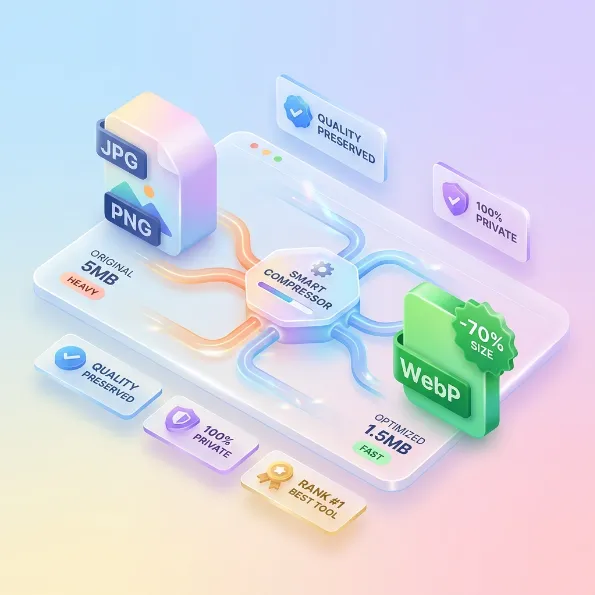
Large images are one of the fastest ways to make a website feel slow. They also create frustrating upload errors: a profile photo must be under 100KB, a form rejects anything above 200KB, a marketplace wants a specific format, or a website needs a lighter hero image. The right image compressor turns those problems into a quick, repeatable workflow.
But not every image compressor is built for the same job. Some are excellent for a single visual comparison. Some are great for PNG and JPEG compression. Some focus on bulk editing. Others make you switch to a separate converter or resizer before the job is finished.
We compared seven free online image compression tools in 2026 across the tasks people actually search for: compression quality, image compressor to 20KB or 100KB workflows, WebP conversion, batch processing, format support, privacy, and how many steps it takes to get publish-ready images.
Our 2026 ranking at a glance
| Rank | Tool | Best for | Main advantage | Main tradeoff |
|---|---|---|---|---|
| 1 | WeLuvTools All-in-One Image Tool | Complete image workflow | Compress, convert, resize, and batch-process together | Browser memory limits apply to very large batches |
| 2 | Squoosh | Manual single-image tuning | Detailed codec and quality controls | More hands-on and less convenient for batches |
| 3 | TinyPNG / TinyJPG | Fast everyday compression | Simple workflow and familiar results | Less control over a full resize-convert pipeline |
| 4 | iLoveIMG | Cloud-based bulk image tasks | Compression, resize, convert, crop, and edit suite | Files are uploaded and limits vary by plan |
| 5 | Caesium | Desktop batch compression | Fine control and repeatable local workflows | Requires installing an application |
| 6 | 11zon Image Compressor | Quick web compression | Straightforward task-focused interface | Less unified control across formats and resizing |
| 7 | Pi7 Image Compressor | Simple occasional compression | Easy to understand for a quick job | Not as complete for advanced batch preparation |
1. WeLuvTools All-in-One Image Tool - best overall
The best image compressor is not always the one that produces the smallest file in a single test. It is the one that gets the whole job finished with the fewest unnecessary steps. That is where WeLuvTools stands out.
The WeLuvTools All-in-One Image Tool combines compression, format conversion, resizing, and batch processing. You can add JPG, JPEG, WebP, HEIC, HEIF, PNG, GIF, BMP, TIFF, and TIF files, choose JPEG, PNG, WebP, or AVIF output when supported, set quality, resize the batch, and download the results individually or as a ZIP file.
Why WeLuvTools ranks first
- One workflow: no separate image compressor, image converter, and image resizer tabs.
- Useful size control: resize first when you need an image compressor to 20KB, 50KB, 100KB, 200KB, 500KB, or 1MB.
- Broad input support: phone images, web images, older BMP files, and TIFF files can enter the same workflow.
- Private by design: processing happens in the browser, so selected files are not sent to a remote upload service.
- Batch-ready: apply the same output settings to multiple images instead of repeating one-file tasks.
It is especially strong for website owners, bloggers, developers, online sellers, students, and anyone preparing a folder of images for upload. Instead of compressing an image and then opening another site to convert it to WebP, you can do both together.
Where it outshines single-purpose tools
Imagine preparing 18 product images. With a single image compressor, you compress them. Then you open a converter, upload them again, download another set, open a resizer, and repeat the process. WeLuvTools lets you define the final workflow once: WebP output, 1200px maximum width, balanced quality, and batch processing. That is a meaningful time saving, not just a feature list.
It also works well as an image compressor free option because there is no account requirement, no watermark, and no server upload in the normal browser workflow.
2. Squoosh - best for hands-on single-image control
Squoosh remains one of the strongest choices when you want to inspect one image closely and tune its output. Its browser-local approach and codec controls make it popular with developers, designers, and performance-conscious creators.
It is a great place to compare JPEG, WebP, and AVIF output while looking at the visual result. You can learn how quality settings affect file size and detail, which is valuable when building a performance budget for a website.
Why it is not number one for everyone
Squoosh is more of a control panel than a complete batch workflow. If you need to process a folder, resize every image, handle HEIC or TIFF inputs, and download a ZIP, the extra manual work becomes noticeable. For one carefully tuned hero image, Squoosh is excellent. For a complete content pipeline, WeLuvTools is more convenient.
3. TinyPNG and TinyJPG - best for familiar quick compression
TinyPNG and TinyJPG are well-known choices for people who want a simple upload-and-download experience. They are useful when the job is straightforward: reduce a PNG or JPEG and move on.
They are especially approachable for users who do not want to understand codecs or quality sliders. The results are often good for common web images, and the names are familiar enough that teams frequently include them in their everyday content checklist.
Where another tool may be better
If your task starts with an HEIC phone image, includes TIFF files, requires a specific dimension, or needs a WebP export and a ZIP download, a basic compressor may not finish the entire workflow. You may need a separate converter or resizer. That is the exact gap an all-in-one image compressor is designed to close.
4. iLoveIMG - best broad cloud-based image suite
iLoveIMG is useful when compression is only one part of a larger online editing workflow. It offers tools for compressing, resizing, cropping, converting, rotating, and editing images, and it is built around bulk operations.
Its broad suite makes it a practical choice for people who already use cloud-based editing tools and want several image actions in one service. It can be a strong option for teams that need cloud integrations or prefer a familiar web workspace.
The privacy and limits tradeoff
Cloud-based processing means your images are uploaded for processing. That may be completely acceptable for public marketing assets, but it is worth considering for personal photos, private documents, unreleased product images, or client files. Account and plan limits can also matter when a batch gets larger.
For a privacy-first workflow, WeLuvTools has the advantage because its browser processing keeps the selected files on your device.
5. Caesium - best for desktop batch control
Caesium is a good choice for people who prefer a dedicated desktop image compression application. Desktop tools can be valuable when you repeatedly process large folders, need deeper controls, want a local workflow, or do not want to depend on an online service.
It is a serious option for photographers, developers, and content teams with a repeatable local process. The tradeoff is setup: you need to download, install, and learn a desktop application. That is worthwhile for a regular production pipeline, but unnecessary for someone who needs a quick image compressor online.
6. 11zon Image Compressor - best for a quick focused task
11zon is a popular search result for people looking for a direct online image compression task. Its focused interface can be convenient when you want to open a page, add images, compress them, and download the output.
It is a reasonable option for a quick, non-sensitive job. For a more complete workflow, compare whether you also need resizing, HEIC or TIFF input, format conversion, size-target preparation, and a predictable batch output. If the answer is yes, an all-in-one workflow can save you from opening additional tools.
7. Pi7 Image Compressor - best for occasional simple compression
Pi7 is another option people discover when searching for a free image compressor online. It can be useful for occasional users who want a simple task-focused experience and do not need a complete image production workflow.
Its main limitation in this comparison is not that it cannot be useful. It is that users may still need separate tools when the job includes batch resizing, format conversion, HEIC or TIFF input, or a specific file-size target. The best choice depends on whether you are compressing one image or preparing a complete set.
How we tested and ranked these image compressors
We ranked the tools around practical workflows instead of one artificial compression number. The comparison focused on:
- Everyday compression: can a normal JPG, PNG, or WebP become smaller without obvious visual damage?
- Size-target preparation: can users work toward 20KB, 50KB, 100KB, 200KB, 500KB, or 1MB limits?
- Format coverage: can the workflow handle JPG, JPEG, WebP, HEIC, HEIF, PNG, GIF, BMP, and TIFF/TIF files?
- Batch processing: can users apply one repeatable setting to multiple images?
- Workflow completeness: are compression, resizing, and conversion available together?
- Privacy: are images processed locally or uploaded to a remote service?
- Usability: can a first-time visitor understand what to do without reading a manual?
Compression results always depend on the original file, dimensions, content, and chosen format. A photo, screenshot, logo, and illustration will not produce the same percentage reduction. That is why a trustworthy comparison should explain the workflow, not promise one universal number.
How to compress images to 20KB, 50KB, 100KB, 200KB, 500KB, or 1MB
File-size limits are common in applications, government forms, profile uploads, marketplaces, and websites. Use this practical sequence:
- Start with the correct crop and remove unnecessary empty space.
- Resize the image to the dimensions it will actually be displayed at.
- Use JPEG for ordinary photos or WebP for modern website delivery.
- Adjust quality gradually instead of immediately choosing the lowest value.
- Process the image and check the actual output size.
- If it is still too large, reduce dimensions before sacrificing more quality.
For a 20KB or 30KB target, dimensions often matter more than quality alone. For a 100KB or 200KB target, you can usually preserve more detail. For 500KB or 1MB hero images, prioritize the displayed dimensions and visual sharpness.
Which image compressor is best for websites?
For a website, the best workflow is usually:
- Resize images near their final display dimensions.
- Use WebP for a strong quality-to-size balance.
- Keep PNG for transparency and sharp interface graphics.
- Use JPEG for compatibility and photographic content.
- Keep original files separately if you may need to edit them later.
WeLuvTools is especially useful here because you can resize and convert while compressing. That means your blog, store, or landing page assets can follow one consistent output rule.
Final verdict: which free image compressor should you choose?
Choose WeLuvTools when you want the best complete browser workflow: compression, conversion, resizing, batch processing, broad input support, and privacy in one place.
Choose Squoosh when you want to tune one image carefully. Choose TinyPNG/TinyJPG for familiar quick compression. Choose iLoveIMG for a broad cloud editing suite. Choose Caesium for a desktop batch workflow. Choose 11zon or Pi7 for a simple occasional online task.
There is no reason to use a complicated workflow when one tool can finish the job. Try the WeLuvTools All-in-One Image Tool when you need to compress, convert, resize, and prepare multiple images without uploading private files.