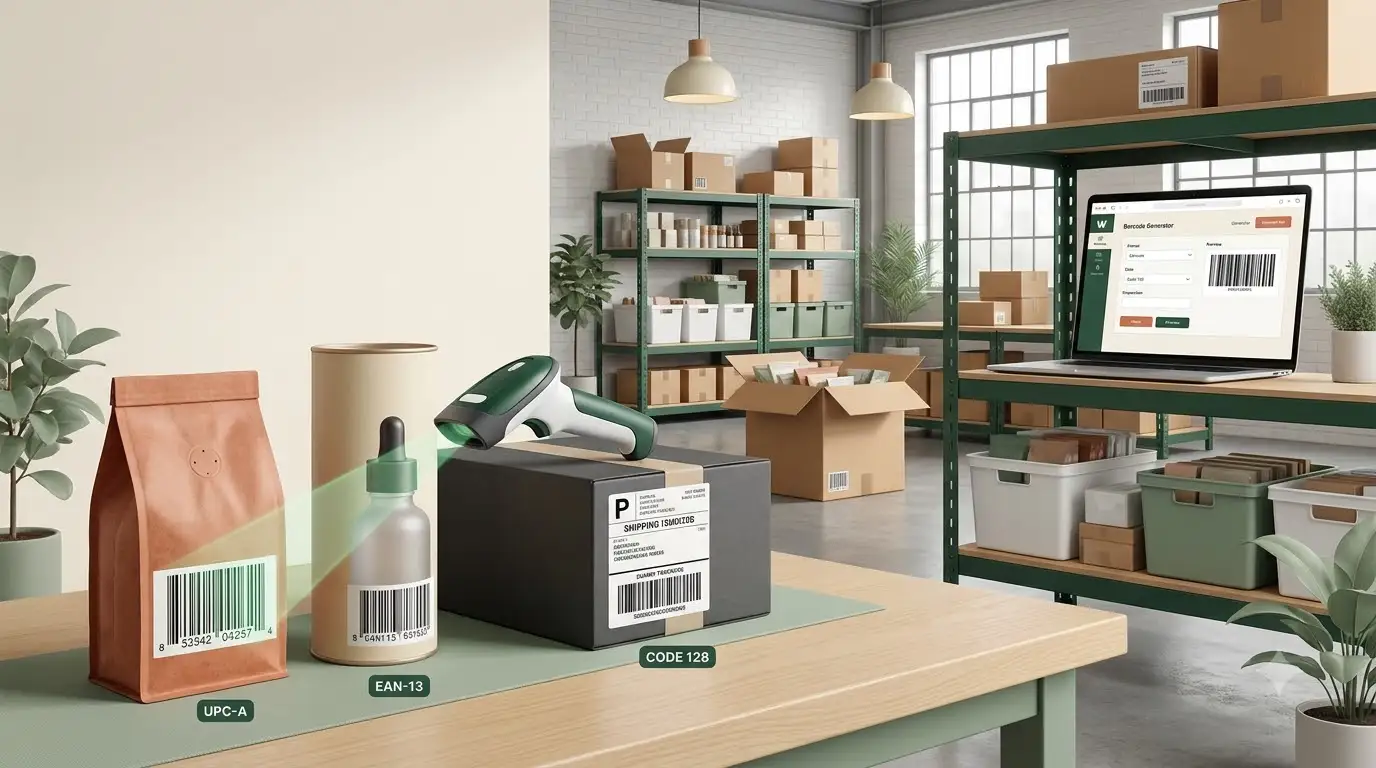
Barcodes connect a physical item with the information stored in a retail, inventory, shipping, ticketing, or asset-management system. The black bars do not normally contain a product name and price by themselves. They encode an identifier that the scanning system uses to look up the correct record.
That distinction matters because different jobs require different barcode formats. A retail product may need UPC-A or EAN-13, a small package may use EAN-8, and an internal warehouse label may be better suited to Code 128. A QR code is useful when a person needs to open a website or another digital destination.
This guide explains the major formats, the difference between a barcode image and an assigned product number, and the complete creation and print-testing process. When your data is ready, open the WeLuvTools Barcode Generator to validate it, preview the symbol, and export PNG or SVG.
Barcode types explained
| Barcode type | Best suited to | Example use |
|---|---|---|
| UPC-A | Retail products, especially in North America | Consumer goods and point-of-sale labels |
| EAN-13 | International retail products | Products distributed across stores and marketplaces |
| EAN-8 | Small retail packages when an eligible GTIN-8 is assigned | Compact cosmetics or small packages |
| Code 128 | Inventory, shipping, and internal identifiers | SKUs, serial numbers, warehouse and logistics labels |
| Code 39 | Industrial and asset-tracking systems | Equipment, components, and internal stock |
| ITF-14 | Trade-item groupings and outer cartons | Cases containing multiple retail units |
| MSI | Numeric inventory systems | Warehouse shelves and internal stock control |
| Pharmacode | Pharmaceutical packaging control workflows | Packaging verification in supported systems |
| QR code | Marketing and digital actions | URLs, menus, contact details, WiFi, and documents |
The WeLuvTools main barcode tool creates the listed linear barcode formats. QR is a two-dimensional barcode and is available through the separate QR Code Generator.
First understand the number behind a retail barcode
A barcode generator turns data into a scannable symbol. It does not assign ownership of a retail product number. If you need a UPC or EAN for products sold through retailers or marketplaces, obtain the identifier required by that channel and associate it with the correct product before generating the image.
GS1 explains that a GTIN is the unique product identifier represented beneath a retail barcode. GTIN-12 is commonly called UPC, GTIN-13 is commonly called EAN, and GTIN-8 is used for some smaller items. Creating bars from a random number does not turn that number into a registered retail identity.
For Amazon and similar marketplaces, verify the current requirements before creating packaging. GS1 US notes that Amazon verifies product identifiers against GS1 data and recommends obtaining the GTIN from GS1 or the product's original manufacturer.
How to generate a barcode step by step
Step 1: choose the correct barcode format
Open the free online Barcode Generator and select the format required by the system that will scan the label. Do not choose by appearance. Ask the retailer, warehouse, carrier, event platform, or inventory-software provider which symbology and data structure it expects.
- Choose UPC-A or EAN-13 for a valid retail GTIN when that format is required.
- Choose EAN-8 only when you have an assigned eight-digit identifier appropriate for that use.
- Choose Code 128 for flexible alphanumeric inventory, shipping, or asset data.
- Choose Code 39 when a compatible industrial system specifically expects it.
- Choose ITF-14 for supported outer-carton and trade-item grouping workflows.
Step 2: enter the product number or text
Enter one value, or add multiple values with one entry per line for a batch. The tool accepts 11 or 12 digits for UPC-A, 12 or 13 digits for EAN-13, seven or eight digits for EAN-8, 13 or 14 digits for ITF-14, printable ASCII text for Code 128, and the supported Code 39 character set.
For UPC-A and EAN-13, entering the data without its final check digit lets the tool calculate and append that digit. If you enter the complete number, the tool validates the check digit before rendering.
Step 3: choose a use-case preset and appearance
Select a scanner, medical, card, retail, or shipping preset, then adjust the bar width, height, human-readable text, text size, bar color, and background. Presets are useful starting points, but a commercial label still needs to meet the specification supplied by the receiving organization.
Step 4: generate and inspect the preview
Select Generate Barcode. Invalid data is identified before output. Compare the human-readable value beneath the bars with the source record, particularly when a check digit was added automatically.
Step 5: download and print
Download SVG for packaging, label layouts, and other print work because it scales without pixelation. Download PNG for digital documents and raster workflows. When generating multiple values, the tool can create SVG or PNG ZIP files and prepare a multi-label sheet that can be saved through the browser's print-to-PDF workflow.
Generation is only the beginning. Scan the exported file, print one proof at the intended physical size, and scan the final printed label with the equipment used in the real workflow.
UPC-A vs EAN-13: what is the difference?
| Feature | UPC-A | EAN-13 |
|---|---|---|
| GTIN length | 12 digits | 13 digits |
| Common regional use | North America | Europe and much of the rest of the world |
| Typical purpose | Retail point of sale | Retail point of sale |
| Check digit | Final digit | Final digit |
| Generator input | 11 digits to calculate, or 12 to validate | 12 digits to calculate, or 13 to validate |
GS1 states that GTIN formats are generally accepted by marketplaces and retailers around the world, but regional conventions and individual systems still matter. Use the identifier assigned to the product and the symbol requested by the destination. Do not add or remove a digit merely to make one format look like another.
For a focused retail workflow, use the EAN-13 and UPC Barcode Generator. It limits the format choice to those two symbols and validates their required lengths and check digits.
When Code 128 is the better choice
Code 128 is a dense alphanumeric format suited to internal identifiers such as SKUs, order references, tracking values, serial numbers, and bin locations. Unlike UPC-A and EAN-13, it is not restricted to a fixed retail GTIN length.
That flexibility does not make Code 128 a replacement for a retail product identifier. Use it when the receiving inventory, shipping, laboratory, event, or asset system expects Code 128. Keep the encoded value reasonably short because longer data produces a wider symbol that becomes harder to fit and scan on a small label.
The dedicated Code 128 Barcode Generator opens with the correct format locked and supports the same preview and export workflow.
Who needs a barcode generator?
| User | Why they use it |
|---|---|
| E-commerce sellers | Create barcode artwork from legitimate product identifiers for listings, labels, and packaging. |
| Small businesses | Label internal stock, equipment, shelves, customer cards, or products. |
| Warehouse managers | Create identifiers for locations, cartons, inventory movements, and supported logistics processes. |
| Manufacturers | Apply assigned retail or packaging identifiers to artwork and production labels. |
| Event organizers | Create scannable ticket or badge values when the check-in system supports the chosen format. |
| Libraries and asset teams | Track books, devices, tools, and other organizational property. |
Barcode design and printing best practices
Protect the quiet zones
A quiet zone is the clear area around the symbol that helps a scanner identify its beginning and end. Do not place text, borders, package edges, cut marks, or decorative graphics inside that area. GS1's barcode implementation guidance emphasizes preserving light quiet zones and the human-readable number.
Use strong contrast
Black bars on a white background remain the safest general choice. If brand colors are required, use a single dark color for the bars and a light, uniform background. Avoid gradients, patterns, transparency, and low-contrast combinations.
Do not stretch the symbol
Export SVG when the barcode must be placed into professional artwork. Scale it proportionally and follow the magnification, height, and placement specification for the selected symbology. A barcode that looks large enough on screen may still be outside the required print dimensions.
Keep human-readable text
The digits or characters printed below the bars provide a fallback when a label is damaged or cannot be scanned. For retail and logistics labels, keep that text accurate and legible unless the governing specification explicitly allows another treatment.
Test the final production sample
A successful scan from a bright monitor does not prove that a small label on curved, glossy, wrinkled, or corrugated packaging will work. Test after printing, cutting, laminating, coating, and applying the label. For a commercial rollout, use the verification process required by the retailer or standards body.
Common barcode mistakes
- Inventing a retail number: the generator creates artwork but does not register a UPC or EAN.
- Using the wrong symbology: a valid Code 128 symbol will not satisfy a checkout system expecting UPC-A.
- Entering an incorrect check digit: the symbol may fail validation or identify the wrong record.
- Removing the quiet zone: nearby text or package artwork can interfere with detection.
- Using weak contrast: light bars, dark backgrounds, gradients, and reflective materials reduce reliability.
- Resizing disproportionately: stretching changes bar widths and spaces.
- Encoding too much data: longer values create wider, denser symbols.
- Skipping the printed proof: production materials can behave differently from the screen preview.
Barcode or QR code: which should you use?
Use a linear barcode when a retail, warehouse, shipping, ticketing, or asset system needs to identify an item. Use a QR code when a person should open a website, menu, document, contact card, email, message, or WiFi connection from a phone.
A product can use both: a UPC-A or EAN-13 symbol for checkout and a QR code for instructions, warranty registration, recipes, support, or marketing. Read the QR code versus barcode guide for a broader comparison.
Generate and test your barcode
Start with the required identifier and symbology, not the visual design. Enter accurate data, preserve contrast and quiet zones, export SVG for print, and test the final physical label in the system where it will be used.
Try the free Barcode Generator to create a single code or a batch in Code 128, EAN-13, EAN-8, UPC-A, Code 39, ITF-14, MSI, or Pharmacode.