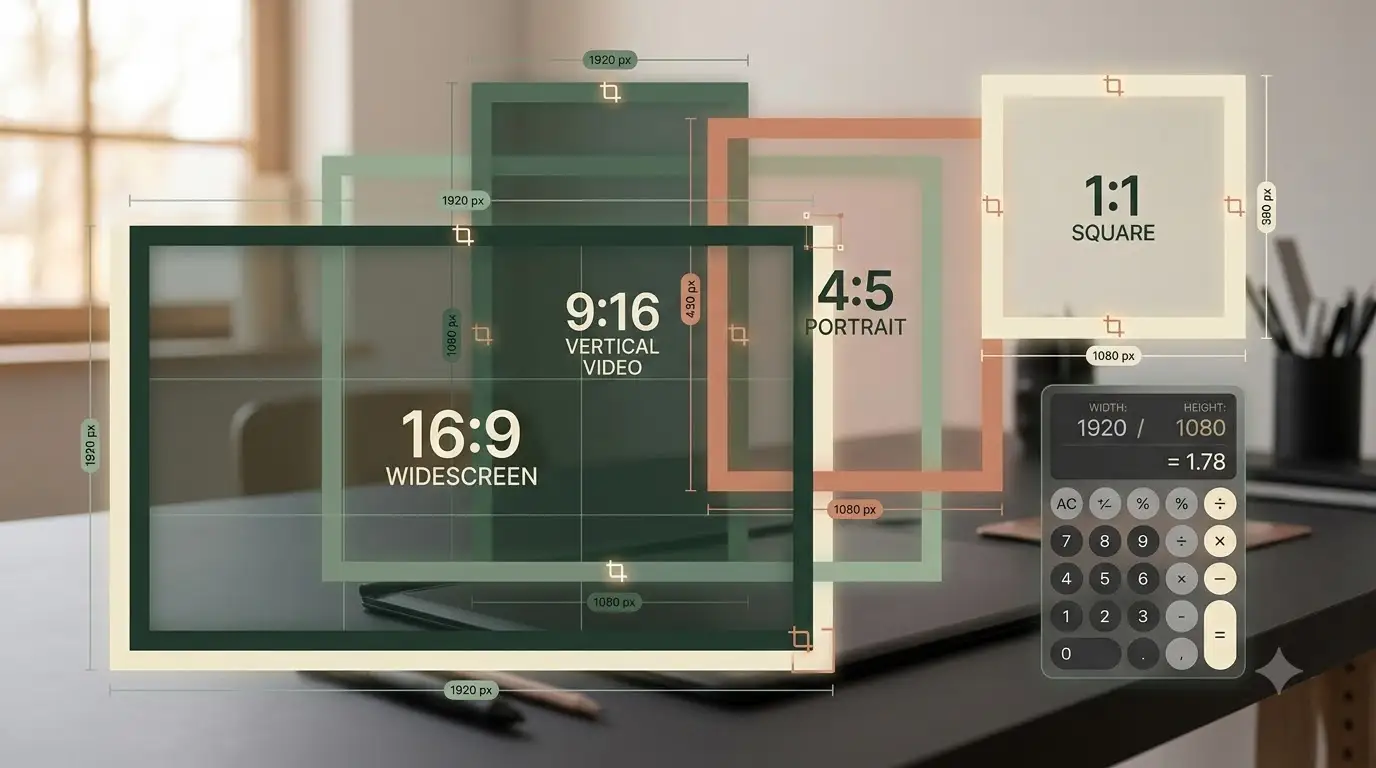
An image can have plenty of pixels and still look wrong after publishing. A portrait gets cropped in a landscape container, a thumbnail gains black bars, or a video looks stretched because its width and height no longer match the original proportions.
Aspect ratio is the relationship between width and height. It describes the shape of an image or video independently of its resolution. A 1920×1080 video and a 1280×720 thumbnail both use a 16:9 aspect ratio, even though their pixel counts are different.
This guide explains how to calculate an aspect ratio, choose practical dimensions for popular platforms, and resize media without distortion. If you already know the width and height, use the free Aspect Ratio Calculator to simplify the ratio instantly. You can also upload an image and let the browser detect its real dimensions locally.
Aspect ratio cheat sheet for social media and video
The dimensions below are practical production canvases, not permanent platform guarantees. Platforms can change upload rules, show media differently by placement, and crop previews in parts of their interface. Keep important text and faces away from the outer edges, and check the current publishing screen before a major campaign.
| Platform or placement | Practical ratio | Working dimensions |
|---|---|---|
| YouTube standard video | 16:9 | 1920×1080 |
| YouTube Shorts | 9:16 | 1080×1920 |
| Instagram square photo | 1:1 | 1080×1080 |
| Instagram portrait feed photo | 4:5 | 1080×1350 |
| Instagram Stories and full-screen Reels | 9:16 | 1080×1920 |
| TikTok vertical video | 9:16 | 1080×1920 |
| X landscape image | 16:9 | 1200×675 |
| X square image | 1:1 | 1200×1200 |
| LinkedIn portrait photo | 4:5 | 1080×1350 |
| LinkedIn carousel ad card | 1:1 | 1080×1080 |
| Facebook link preview | About 1.91:1 | 1200×630 |
| Facebook square feed graphic | 1:1 | 1080×1080 |
YouTube documents 16:9 as its standard computer ratio and lists 1920×1080 for 1080p. Instagram currently preserves supported photos up to 1080 pixels wide, while unsupported photo ratios may be cropped. LinkedIn accepts a range of photo ratios, including portrait media, so the table uses a convenient editing canvas rather than claiming only one permitted size.
How to calculate an aspect ratio step by step
To find the shape of an image, begin with its width and height:
Decimal ratio = width ÷ height
For 1920×1080, the decimal is 1920 ÷ 1080 = 1.7777. To express the result as a familiar width-to-height ratio, divide both numbers by their greatest common divisor. The greatest common divisor of 1920 and 1080 is 120:
- 1920 ÷ 120 = 16
- 1080 ÷ 120 = 9
- The simplified aspect ratio is 16:9.
You do not need to calculate the divisor by hand. Open the Aspect Ratio Calculator, choose Find Ratio, enter the width and height, and the tool returns the simplified ratio, decimal value, and orientation.
How to find a missing dimension
When you need a new size without stretching the image, keep the same relationship between width and height:
- New height = new width × original height ÷ original width
- New width = new height × original width ÷ original height
For example, resizing a 1920×1080 image to 1280 pixels wide gives 1280 × 1080 ÷ 1920 = 720 pixels high. The correct result is 1280×720, which remains 16:9.
For a 4:5 portrait image with a new width of 1080 pixels, calculate 1080 × 5 ÷ 4 = 1350. The proportional result is 1080×1350.
Common aspect ratios and when to use them
16:9 for widescreen video and web media
Use 16:9 for standard YouTube videos, HD and 4K screens, presentation video, hero media, and many landscape embeds. Common resolutions include 1280×720, 1920×1080, and 3840×2160.
9:16 for vertical, phone-first video
Use 9:16 when the content is designed to fill a phone held upright. It is a practical canvas for Stories, Reels, Shorts, and TikTok. Keep captions and key objects inside a central safe area because interface buttons and captions may cover the outer edges.
4:5 for portrait feed images
A 4:5 image occupies more vertical feed space than a square while remaining less tall than full-screen 9:16 media. A common editing size is 1080×1350. Do not call it the only accepted portrait ratio: supported ranges and placement behavior can change.
1:1 for square cards and reusable graphics
Square content is easy to reuse in grids, profile layouts, product cards, and some ad placements. A 1080×1080 canvas gives enough resolution for common feed use without forcing a landscape or portrait crop.
21:9 for cinematic and ultrawide layouts
Use 21:9 for ultrawide monitors, cinematic banners, and intentionally panoramic video. Standard players may add empty space when the viewer's screen has a different shape, so preview the final delivery environment.
4:3 for presentations, older media, and some prints
The 4:3 ratio appears in older cameras and screens, traditional slide formats, and several print-oriented compositions. It can be a better match than 16:9 when the destination is a document, print, or legacy display.
Aspect ratio versus resolution
Aspect ratio describes shape; resolution describes pixel dimensions. Two files can share a ratio but have very different detail. A 320×180 thumbnail and a 3840×2160 video are both 16:9, but the larger file contains far more pixels.
This distinction matters when preparing exports. The correct ratio prevents stretching and unexpected cropping. Adequate resolution keeps the result sharp. You normally need both.
Professional uses for an aspect ratio calculator
| Workflow | How the calculator helps |
|---|---|
| Video editing | Plan landscape, square, portrait, and vertical versions from one master without distorting the footage. |
| Web design | Calculate responsive image dimensions and match CSS aspect-ratio containers to source assets. |
| Print design | Compare a photo's shape with a frame or print area before deciding whether to crop. |
| Social media management | Prepare platform-specific canvases and check every export before scheduling a campaign. |
| E-commerce | Keep product cards visually consistent while preserving each source image's proportions. |
| Presentations | Convert graphics between 4:3 and 16:9 slide decks with a deliberate crop instead of a stretch. |
How to use the WeLuvTools Aspect Ratio Calculator
The calculator offers three workflows, each designed for a different starting point:
- Calculate Size: enter the original width and height, choose whether to solve for a new width or height, and enter the dimension you already know. The proportional missing dimension appears immediately.
- Find Ratio: enter existing pixel dimensions to get the simplified ratio, decimal ratio, and landscape, portrait, or square orientation.
- Upload Image: choose a JPG, PNG, WebP, GIF, or AVIF file. The tool reads the real width, height, aspect ratio, orientation, and megapixel count in your browser. It also calculates a proportional height from a target width.
You can also select common presets such as 16:9, 4:3, 1:1, 3:2, 21:9, and 9:16. The uploaded image is inspected locally and is not sent to WeLuvTools.
Once you know the correct dimensions, open the Image Resizer to create a resized copy. If the destination requires a different shape, use the Image Cropper and choose what to remove rather than stretching the image.
Common mistakes that cause cropping or distortion
- Changing width without changing height: this stretches or compresses the content.
- Confusing ratio with resolution: 16:9 does not automatically mean 1920×1080.
- Designing to the visible preview only: some feeds crop thumbnails differently from the opened post.
- Putting text at the edge: interface overlays and responsive crops can hide it.
- Upscaling a small source too far: the ratio stays correct, but the image can still become soft or pixelated.
- Skipping a final-device check: preview the actual upload on a phone and desktop before publishing a campaign.
Calculate before you resize
Aspect ratios become simple once you separate shape from resolution. Find the current ratio, choose the destination ratio, calculate proportional dimensions, and crop only when the shapes genuinely differ.
Try the free Aspect Ratio Calculator to inspect an image or calculate exact dimensions, then finish the export with the Image Resizer.