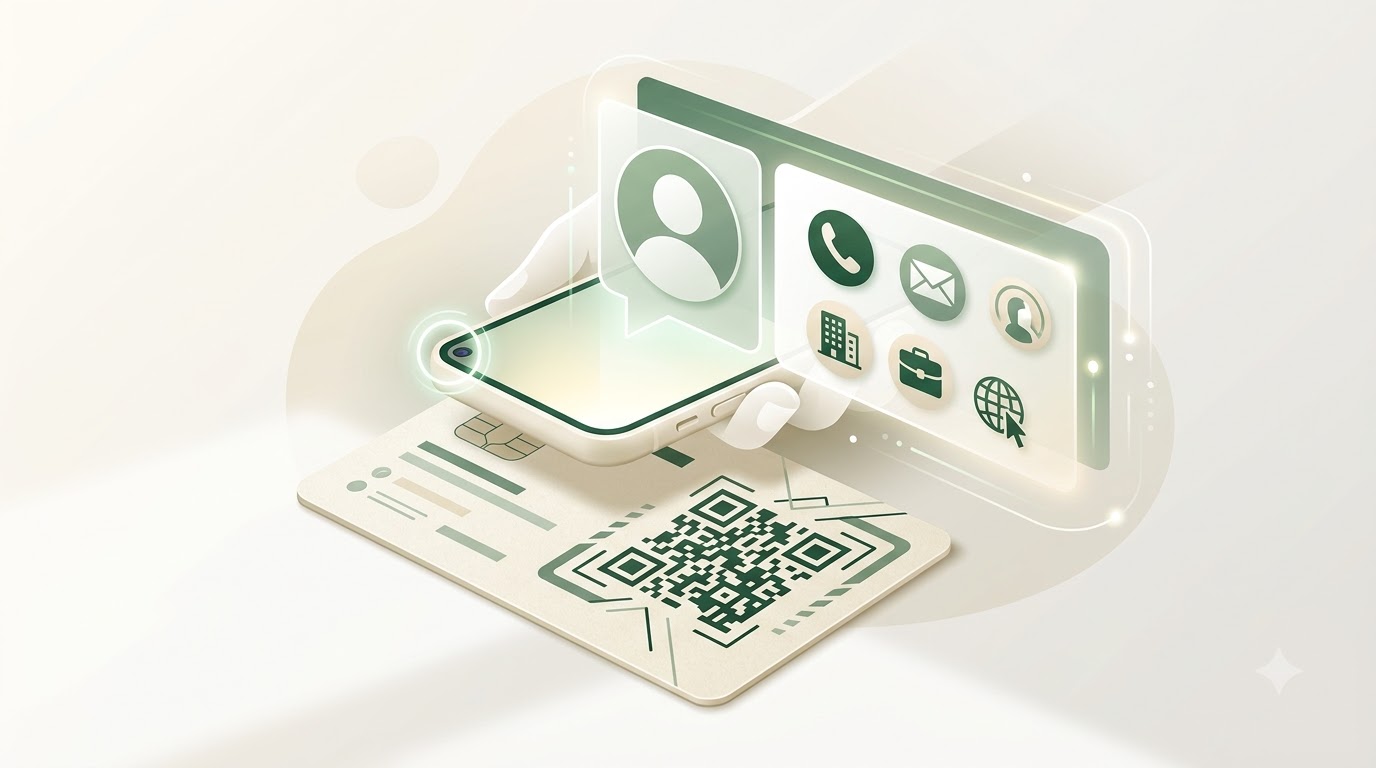
Paper business cards are useful, but they still ask the recipient to type your name, phone number, email address, and company into a phone. A missed digit or forgotten card can end a promising connection before it starts.
A vCard QR code makes contact sharing faster. When someone scans the code with a compatible smartphone, the contact details appear in a ready-to-save contact card. Instead of copying several fields manually, the person can review the information and add it to their address book.
This guide explains how to create a vCard QR code for free, what information to include, how to test it, and where a digital business card QR code is most useful.
What is a vCard QR code?
A vCard is a standard format for exchanging contact information. It can contain fields such as a person's name, mobile number, email address, organisation, job title, and website. WeLuvTools uses the widely supported vCard 3.0 format.
A vCard QR code stores that structured contact data inside the QR pattern. When a phone recognizes the payload, it can offer to create a new contact with the available fields already filled in. The person scanning the code should still review the details before saving them.
Unlike a QR code that points to an online profile, a static vCard QR code contains the entered contact data directly. It does not need a hosted landing page, although exact scanning behaviour can vary by camera app, phone model, and operating-system version.
Step 1: Gather the contact details you want to share
Prepare the information before opening the generator. The current WeLuvTools tool supports:
- First and last name: at least one name field is required.
- Mobile number: include the international country code when the code will be shared across regions.
- Email address: use an address you actively monitor.
- Organisation: add your company, agency, school, or professional group.
- Job title: explain your role without making the contact card too long.
- Website URL: link to your portfolio, company site, booking page, or professional profile.
You do not need to complete every optional field. Include only information you are comfortable sharing with anyone who can scan the finished image.
Step 2: Open the free vCard QR Code Generator
Open the WeLuvTools vCard QR Code Generator. It provides separate fields for the supported contact details, so you do not need to write or format vCard text manually.
- Free to use: create contact QR codes without an account or subscription.
- Privacy-first: the vCard payload and QR image are generated in your browser.
- Field validation: the tool checks the name, email, phone number, and website input before generation.
- Contact-ready format: details are encoded using vCard 3.0.
- PNG download: save the finished QR image for digital material or print layouts.
Step 3: Enter the contact fields correctly
Add your first name, last name, or both. Then enter the phone number, email, organisation, job title, and website you want the scanner to receive.
Use a complete website address such as https://example.com. Check the spelling of the email address and include the correct country code in the phone number. A static QR code preserves the exact information entered, including any mistakes.
Before generating, consider how the contact will look in somebody else's address book. Use a recognizable professional name, a clear organisation name, and a concise job title.
Step 4: Generate and download the vCard QR code
Select Generate vCard QR Code. The tool creates a preview containing the structured contact data. Scan that preview from the screen before downloading it.
When the details open correctly, choose Download QR Code (PNG). The PNG works well in email signatures, presentation slides, social graphics, resumes, event materials, and business-card layouts. Keep the QR image square and do not stretch or crop it when placing it in a design.
Step 5: Test the QR code before publishing or printing
A valid-looking QR image can still contain an incorrect phone number or misspelled email address. Test the final code before sending a design to print.
- Scan the code with your phone's normal camera app.
- Confirm that the phone recognizes it as contact information.
- Check every populated field, especially the phone number and email.
- Save a test contact and confirm the fields appear in the expected places.
- Ask someone using a different phone platform to scan it as well.
- For printed material, test a proof at the final physical size.
This short check can prevent an entire batch of unusable business cards, badges, or flyers.
Where to use a vCard QR code
| Use case | How it helps |
|---|---|
| Business cards | Recipients can scan and save the contact instead of typing every field. |
| Email signatures | A contact QR image gives desktop email readers another quick way to save your details. |
| Conference badges | People can exchange contact information during a conversation without searching for profiles. |
| Resumes and portfolios | Recruiters and clients can save your professional contact details from a printed or digital document. |
| Presentation slides | An audience can scan your closing slide and keep your contact information after the session. |
| Shop counters and event displays | Visitors can save a sales, booking, support, or organizer contact while they are on location. |
Is a vCard QR code safe?
A vCard QR code is similar to a public business card: anyone who can scan it can read the information encoded inside it. Do not include a private phone number, personal email, or other detail that you would not place on a public card.
WeLuvTools creates the vCard payload and QR image in your browser, so the contact details are not sent to WeLuvTools for storage. The downloaded image still contains the information, however. Store and distribute it with the same care you would use for a physical business card.
Static vCard QR codes and future updates
The contact data is stored directly in this static QR code. If your number, email, company, title, or website changes, the printed QR image does not update automatically. Generate a new code and replace the old image.
If your details change frequently, you can instead create a URL QR code that opens an online contact or profile page you control. That approach requires an internet connection, but the destination page can be updated without changing the QR image as long as its URL remains the same.
Common vCard QR code mistakes
- Entering a phone number without the correct country code.
- Using an incomplete website URL.
- Including contact details that should not be publicly shared.
- Stretching, cropping, or placing graphics over the QR pattern.
- Printing the code too small or without a clear margin.
- Skipping a scan test before ordering printed material.
- Continuing to distribute an old code after contact information changes.
Create your vCard QR code now
A QR code for contact sharing removes unnecessary typing from networking. Enter accurate information, generate the vCard, scan-test it, and add the PNG to the place where people already discover you.
Generate your free vCard QR code.
For other actions, use the main QR Code Generator, create a LinkedIn QR code for your professional profile, or create a WhatsApp QR code that opens a chat.