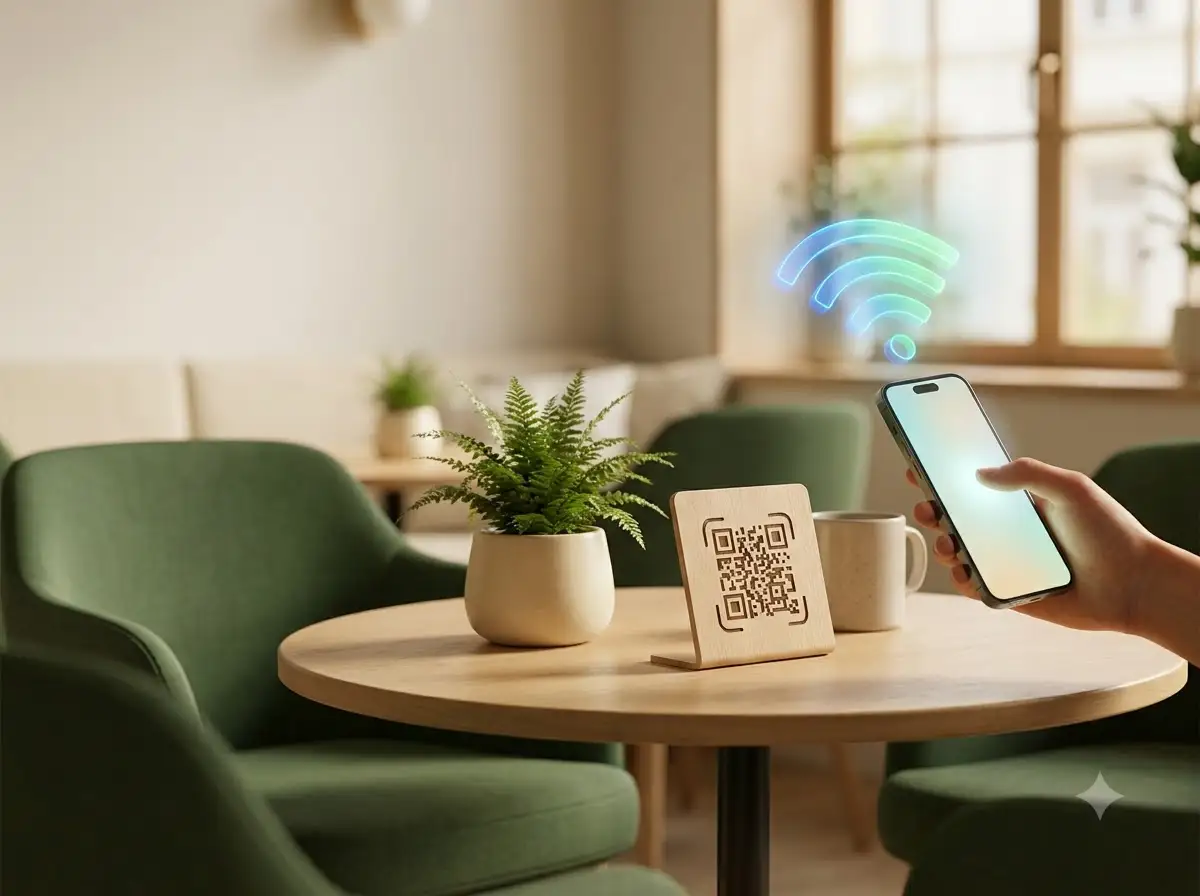
What is the WiFi password? It is a small question that interrupts café staff, hotel receptionists, office teams, event hosts, and rental-property owners every day. Then come the follow-up questions: Is that a zero or the letter O? Is the network name case-sensitive? Where is the password written?
A WiFi QR code turns that repeated explanation into a scan. It stores the network name, security type, password, and optional hidden-network setting in a structured QR payload. On a compatible phone, scanning the code can offer to join the network without manual password entry.
This guide shows how to create a WiFi QR code, set it up for a business or guest network, place it where people can scan it, and avoid the security and printing mistakes that cause most failures. Start with the free WiFi QR Code Generator.
What is a WiFi QR code?
A normal URL QR code opens a website. A WiFi QR code contains structured connection details:
- SSID: the exact network name;
- security type: WPA/WPA2, WEP, or an open network;
- password: the credential for a protected network;
- hidden setting: whether the router broadcasts the SSID.
A supported phone camera or QR scanner recognizes that the payload represents a wireless network and can present a connection action. Apple provides built-in QR scanning through Camera and Code Scanner, and Google documents sharing a connected WiFi network by QR code on Pixel phones. Exact behavior varies by phone model, camera app, operating-system version, and network configuration, so always test with the devices your guests are likely to use.
The password is encoded, not magically hidden. Anyone who can scan or decode the image may be able to recover the credentials. Treat the finished QR code like a printed password.
Who benefits from a WiFi QR code?
| Use case | Why it helps | Recommended placement |
|---|---|---|
| Restaurants and cafés | Customers join a dedicated guest network without interrupting staff. | Table tent, counter sign, or menu insert |
| Hotels and guesthouses | Guests connect during check-in without copying credentials from a long welcome message. | Room card, welcome booklet, or reception desk |
| Offices and coworking spaces | Visitors get approved access without receiving the internal employee-network password. | Reception or meeting room |
| Events and conferences | Attendees can join an event network quickly during busy arrival periods. | Registration desk or private attendee signage |
| Vacation rentals | Hosts reduce repeated messages and make self-check-in smoother. | Inside the property or digital check-in guide |
| Home guest networks | Friends and family connect without typing a long password on every device. | Framed card in a shared room |
Before generating: create the right guest network
For a business, hotel, office, or rental, do not automatically share the primary network used by payment terminals, staff computers, storage devices, printers, or smart-building equipment. If the router supports it, create a separate guest network and apply the access controls your organization requires.
Write down the exact SSID and security configuration from the router or a connected device. Do not rely on memory. Network names and passwords are case-sensitive, and one wrong character produces a perfectly valid-looking code for credentials that do not work.
How to create a WiFi QR code step by step
Step 1: Enter the network name
Open the WeLuvTools WiFi QR Code Generator and enter the SSID exactly as it appears in the phone's WiFi list. Preserve spaces, capitalization, punctuation, and numbers.
Step 2: Select the matching security type
Choose WPA/WPA2 for most current protected networks, WEP only for a legacy network that actually uses it, or No password for an open network. Match the router configuration rather than choosing the newest-sounding option. The current generator creates the standard WPA payload used for WPA/WPA2 networks; it does not present a separate WPA3-only selector.
Step 3: Enter the password
Type the current network password. Use the visibility button to check ambiguous characters before continuing. For an open network, the tool removes the password requirement.
Step 4: Set the hidden-network option
Enable Hidden network only if the router does not broadcast the SSID. Hidden-network connection behavior varies more between phones, so test this setup carefully.
Step 5: Customize the design
The live preview appears after the required fields are valid. Adjust the foreground and background colors, module shape, finder-corner style, size, margin, and error-correction level. Keep the foreground substantially darker than the background and preserve the clear margin around the code.
The current tool does not add a center logo. That is intentional in this guide: do not place a logo over the exported image in another editor unless you understand QR error correction and have scan-tested the final design. A decorative overlay can cover essential modules and reduce reliability.
Step 6: Download PNG or SVG
Choose PNG for email, a website, a digital welcome guide, or ordinary office printing. Choose SVG when a designer needs to scale the code for table cards, room signs, window graphics, or event material without pixelation.
Step 7: test before displaying it
Scan the code directly from the screen first. Then print one proof at the final size and test it with multiple phones under the lighting where guests will use it. Confirm that every phone identifies the intended network and that a real connection succeeds.
Where to place a business WiFi QR code
Reception desks and check-in areas
Place the code where visitors naturally pause, but not where passers-by outside the intended area can photograph it easily. Pair it with a direct instruction such as Scan to join guest WiFi.
Café and restaurant table tents
Keep the code upright, flat, and away from glare, spills, decorative patterns, and folds. A table tent can pair WiFi access with a separate Restaurant Menu QR Code, but label both clearly so customers know which action each code performs.
Hotel rooms and rental properties
A room information card or private digital welcome guide is more controlled than a lobby window or a public social post. If different floors or units use different networks, generate and label a separate code for each one.
Meeting rooms and event spaces
Display the guest-network code near the screen, conference phone, or attendee desk. Remove temporary signs after the meeting or event, especially when the credentials should not remain available.
Router labels
A small label near a home router can be convenient, but it may be hard to scan if the router is hidden behind furniture. A separate card at eye level usually scans more easily and gives you space for a clear instruction.
How to brand a WiFi QR code safely
Branding should improve recognition without weakening scan reliability. The generator supports colors, module shapes, finder styles, output size, margin, and error correction. Use those controls conservatively:
- choose a dark brand color for the modules and a light background;
- avoid transparent, photographic, textured, or reflective backgrounds;
- keep the quiet zone clear on all four sides;
- add the call to action outside the QR code, not on top of it;
- use SVG when the sign will be professionally printed;
- test the final branded artwork, not only the unedited download.
A simple high-contrast code with a clear heading often performs better than a heavily decorated one.
Common WiFi QR code mistakes
- Wrong security type: the SSID and password may be correct, but the payload still fails when the selected security does not match the router.
- Incorrect capitalization: network names and passwords are case-sensitive.
- Sharing the internal network: use a restricted guest network where possible.
- Publishing credentials too broadly: a QR code posted on social media can be decoded by anyone who can access the image.
- Changing the password without replacing the code: a static QR still stores the old credentials.
- Cropping the quiet zone: removing the clear border can make recognition less reliable.
- Printing too small or with low contrast: glossy surfaces, distant placement, and weak color contrast make scanning harder.
- Testing only one phone: behavior varies across devices and camera apps.
WiFi QR code security checklist
- Create a dedicated guest network when the router supports it.
- Keep staff, payment, storage, and smart-device networks separate when appropriate.
- Display the QR only where intended guests can access it.
- Remove old printouts after a password or SSID change.
- Change credentials if the QR image was shared more widely than intended.
- Keep a written network name available as a fallback for devices that cannot scan a WiFi QR code.
WeLuvTools generates the WiFi payload, preview, and downloads in your browser. The SSID and password are not sent to WeLuvTools for storage. The downloaded image itself still contains the credentials, so local generation does not remove the need to handle that image carefully.
Create and test your WiFi QR code
A well-placed WiFi QR code removes a repeated task without creating a complicated new workflow. Use the exact router settings, prefer a guest network, keep the design high-contrast, and test the final printed version before guests rely on it.
Create your WiFi QR code now. For a website, contact, text, email, or another action, use the main QR Code Generator. New to QR codes? Read How to Create a QR Code for the complete generation and testing workflow.