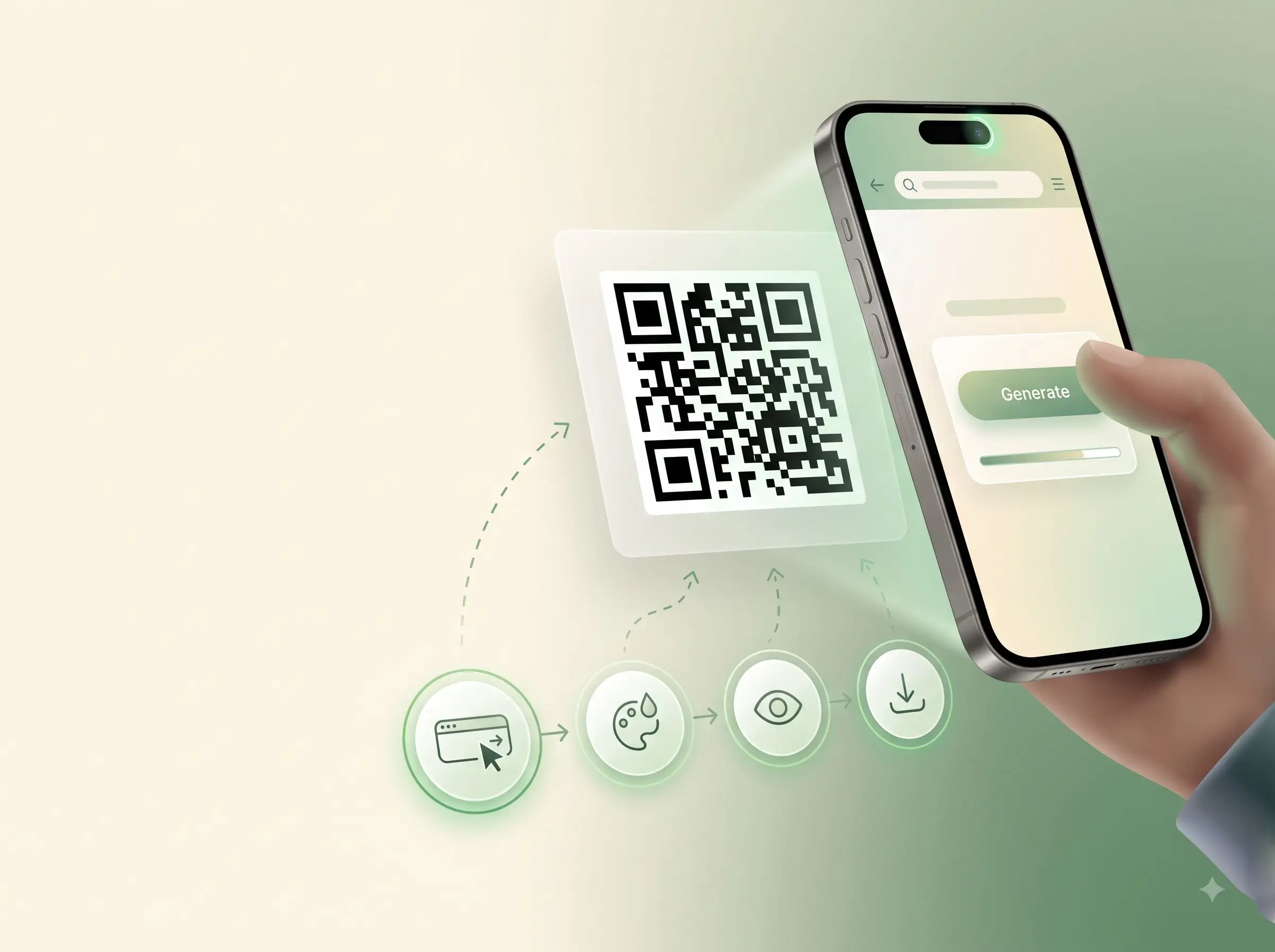
QR codes appear on restaurant tables, packaging, business cards, event posters, and signs because they connect printed material with a digital action. A quick scan can open a website, display a message, start a WhatsApp conversation, share WiFi access, save contact details, or open a document.
You can create a QR code for free without installing software or creating an account. This guide explains how to choose the right QR type, enter the data correctly, customize the design, download the correct format, and test the finished code before publishing or printing it.
Step 1: Decide what the QR code should do
The first step is choosing the action you want after a scan. Different QR payloads produce different phone behavior.
| QR code type | What happens when scanned | Common uses |
|---|---|---|
| URL or website | Opens a public web page | Business cards, packaging, advertising |
| Plain text | Displays the encoded message | Instructions, clues, labels, short notes |
| Opens the mail app with a recipient | Support and inquiries | |
| WiFi | Offers to connect using encoded network details | Homes, cafés, hotels, offices |
| Opens a chat with a phone number | Orders, sales, and customer support | |
| vCard | Offers contact details for saving | Business cards and networking |
| Opens a publicly hosted PDF link | Menus, manuals, brochures | |
| Social profile | Opens a profile, page, post, or reel | Flyers, products, and event displays |
Choose the dedicated generator when the payload needs structured fields. For example, a WiFi QR requires a network name, security type, password, and optional hidden-network setting, while a WhatsApp code needs an international phone number and can include a prepared message.
Step 2: Open a free QR code generator
Open the WeLuvTools QR Code Generator. URL mode is ready by default, and you can switch between website, text, phone, email, WhatsApp, SMS, subscription, and social modes. Dedicated tools are available for structured WiFi and vCard codes.
- No sign-up or account is required.
- The QR payload is processed in your browser.
- A live preview shows the first valid code as you edit.
- Colors, module shape, finder style, size, margin, and error correction can be adjusted.
- The finished QR can be downloaded as PNG or SVG.
Step 3: Enter the data correctly
For a website QR code, paste the complete public address. For a WhatsApp code, enter the phone number with its country code. For a plain-text code, enter the exact message the scanner should display. Use the WiFi QR Code Generator for SSID, password, security, and hidden-network data, or the vCard QR Code Generator for structured contact details.
Check spelling carefully. Static QR codes store the exact data entered, so a mistyped address, phone number, network name, or email address becomes part of the finished code.
Step 4: Customize the QR code without hurting readability
Use the design controls to match a brand or event while preserving scan reliability. Choose a dark foreground and light background with strong contrast. Keep a clear margin around the pattern and avoid colors that become indistinguishable when printed.
Error correction can help a QR code remain readable when part of it is dirty or damaged, but higher levels also create denser patterns. A short destination URL and a sensible output size usually scan faster than a long, dense payload printed too small.
Step 5: Download PNG or SVG
Choose the file type based on where the QR code will be used:
- PNG is convenient for websites, email, presentations, social media, and normal digital placement.
- SVG is a vector format suited to business cards, packaging, stickers, posters, menus, and signs because it scales without becoming pixelated.
Downloading both formats is useful when a campaign will appear online and in print.
Step 6: Test before publishing or printing
Open the camera on at least two phones and scan the finished QR code. Confirm that it opens the correct destination or displays the exact intended content. For print work, test a proof at the final physical size and under the lighting in which people will scan it.
- Check the destination and encoded data.
- Scan from a realistic distance.
- Test both bright and dim conditions.
- Keep the quiet zone clear of text and graphics.
- Verify the printed foreground and background still have strong contrast.
A short test can prevent an expensive reprint.
Useful QR code ideas
Restaurant menus
Create a restaurant menu QR code for a public PDF, mobile menu, or ordering page. Keeping the same stable destination lets a restaurant update the menu content without changing the printed code.
Networking and contact sharing
Add a vCard code to a business card, a LinkedIn QR code to a resume, or a WhatsApp QR code to customer-service material.
Documents, images, and videos
A PDF QR code can open a manual or brochure, an image QR code can open a hosted photo, and a video QR code can connect printed material with a public or unlisted video.
Guest WiFi
Use the dedicated WiFi generator to create a code for a home guest network, hotel room, café, office meeting room, rental property, or event. Display network credentials only where you are comfortable sharing them.
Start creating your QR code
You do not need design software, an account, or a paid subscription. Choose the right payload, enter accurate data, keep the design readable, and scan-test the result.