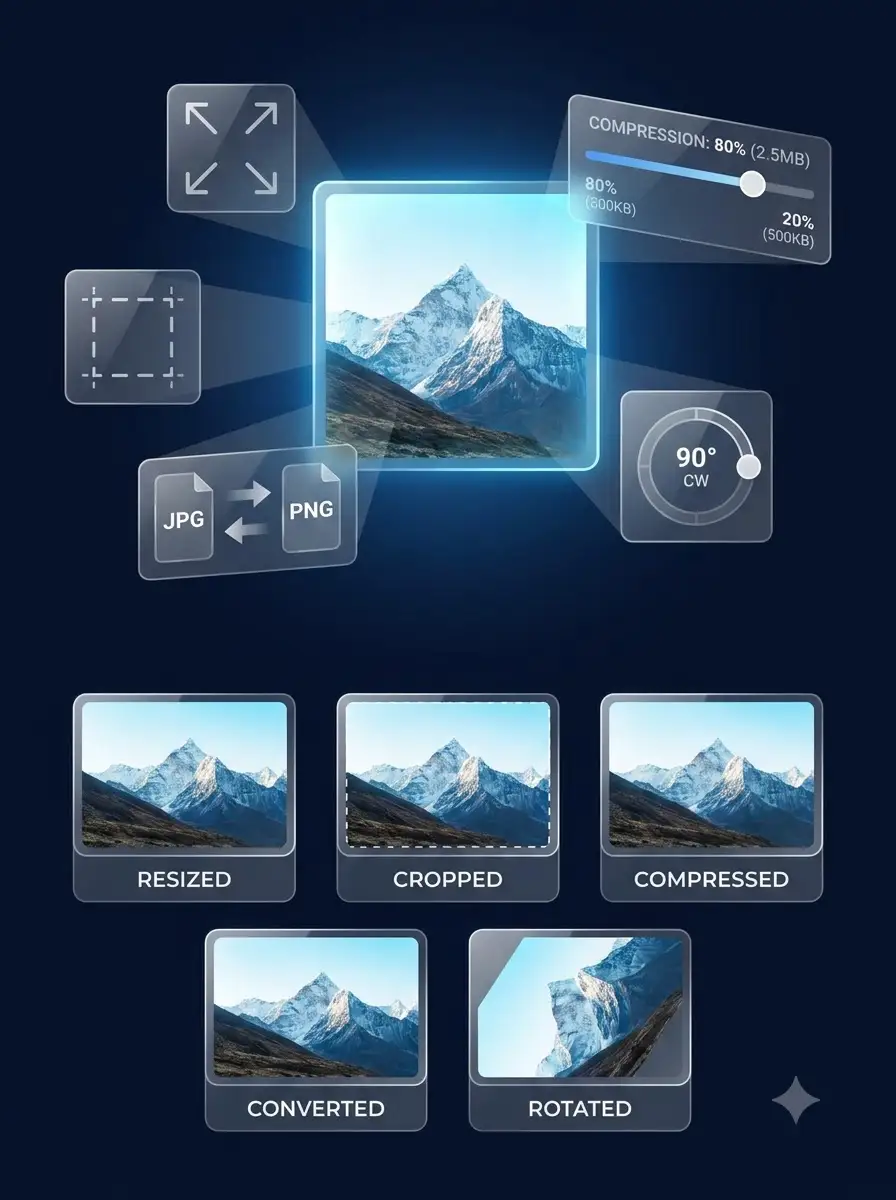
Cropping an image sounds like a five-second task. Open a tool, drag a box, download the result. But when you have a folder of product photos, a set of social media graphics, or a batch of client images that all need the same composition, the five-second task becomes a repetitive hour-long job — unless the tool you use actually supports a batch workflow.
This guide compares the best free image croppers online in 2026, explains what separates a single-image editor from a real batch image cropper, and shows how cropping fits into a complete image preparation workflow that ends with a file ready to publish.
What makes a good free image cropper online?
Not every online cropper is built for the same job. Before comparing tools, it helps to know which features actually matter for the work you are doing.
- Interactive crop editor: drag-to-select, resize handles, and a visible crop box rather than entering numbers manually.
- Aspect ratio presets: lock the crop to 1:1, 4:3, 16:9, 9:16, and other common ratios without calculating dimensions by hand.
- Social media presets: pre-configured crop sizes for Instagram Post, Instagram Story, YouTube Thumbnail, Facebook Cover, LinkedIn Banner, and similar destinations.
- Rotate and flip: correct orientation before cropping without opening a separate tool.
- Output format choice: export to JPG, PNG, or WebP depending on where the image will be used.
- Batch processing: load multiple images, apply the same crop configuration, and process the whole set at once.
- Browser-local processing: images stay on your device and are not uploaded to a remote server.
Why WeLuvTools is different for batch image workflows
Most online image croppers are built around a single-image model. You upload one file, crop it, download it, and repeat. That model works for occasional edits. It does not work when you have ten, twenty, or fifty images that all need the same treatment.
The WeLuvTools Image Cropper supports two distinct workflows in the same tool.
Single-image workflow
Load one image and use the full interactive editor:
- Draw a free crop selection or lock to an aspect ratio
- Choose from social media presets including Instagram Post (1080×1080), Instagram Story (1080×1920), YouTube Thumbnail (1280×720), Facebook Cover (820×312), LinkedIn Banner (1584×396), OG Image (1200×630), and Avatar (400×400)
- Rotate by 90° increments and flip horizontally or vertically
- Zoom to inspect the composition before committing
- Export to PNG, JPG, or WebP with adjustable quality
- Review a before-and-after comparison with file size information
Batch workflow
Load multiple images and apply a shared crop configuration to the whole set:
- Drop multiple files at once or add more images after the initial upload
- Switch between images using the thumbnail strip — each image remembers its own crop selection
- Set the aspect ratio or social preset once and draw the crop on each image individually, or use Select All to apply the maximum crop area for the chosen ratio
- Process all images with Crop All — the same rotation, flip, zoom, format, and quality settings apply to every file
- Download individual results or download the complete batch as a ZIP file
The key difference from a single-image tool is that the crop configuration — aspect ratio, rotation, flip, output format, and quality — is shared across the batch. You set it once and process everything together instead of repeating the same steps for every file.
Privacy: why browser-local processing matters
When you crop a product photo, a client image, or a personal photo, you may not want that file to leave your device. Some online tools upload every image to a remote server for processing. Others process files entirely in the browser using the Web Canvas API.
The WeLuvTools Image Cropper processes images locally. The crop, rotation, flip, and format conversion all happen in your browser. Your files are not sent to a server. This is useful for:
- Product photography that has not been published yet
- Client images covered by a confidentiality agreement
- Personal photos you do not want stored on a third-party service
- ID documents, screenshots, or sensitive visual content
Browser-local processing also means the tool works without a network connection once the page has loaded, and there is no file size limit imposed by a server upload quota.
Why batch cropping changes the workflow
The practical value of a batch image cropper is easiest to understand with a concrete example.
Imagine you have 50 product photos from a shoot. Every photo needs to be cropped to a 1:1 square for an e-commerce listing. With a single-image cropper, the workflow looks like this:
Photo 1 → open → crop → export → download
Photo 2 → open → crop → export → download
Photo 3 → open → crop → export → download
...
50 times
With a batch image cropper, the workflow looks like this:
50 images
    ↓
Load all files
    ↓
Set aspect ratio to 1:1
    ↓
Draw crop on each image (or Select All)
    ↓
Crop All
    ↓
Download ZIP
The difference is not just speed. It is consistency. Every image in the batch uses the same format, quality, and crop configuration. There is no risk of accidentally exporting one image as PNG and another as JPG, or forgetting to apply the same quality setting to the last file in the folder.
Image cropper for social media: presets that match real platform requirements
Social media platforms have specific image dimension requirements, and cropping to the wrong ratio means the platform will crop the image again — usually in a way you did not intend.
The WeLuvTools Image Cropper includes presets for the most common social media destinations:
| Preset | Dimensions | Common use |
|---|---|---|
| Instagram Post | 1080 × 1080 px | Square feed post |
| Instagram Story | 1080 × 1920 px | Full-screen vertical story |
| YouTube Thumbnail | 1280 × 720 px | 16:9 video thumbnail |
| Facebook Cover | 820 × 312 px | Page cover photo |
| LinkedIn Banner | 1584 × 396 px | Profile background |
| OG Image | 1200 × 630 px | Link preview image |
| Avatar | 400 × 400 px | Profile picture |
| Twitter Banner | 1500 × 500 px | Profile header |
Selecting a preset applies the correct crop ratio to the current image. The crop box is positioned to use the maximum available area, which you can then reposition before processing.
Feature comparison: WeLuvTools vs other free image croppers
The table below compares features based on publicly available information. Verify current capabilities directly on each tool's site before making a decision for a production workflow.
| Feature | WeLuvTools | iLoveIMG | Squoosh | Photopea |
|---|---|---|---|---|
| Online crop editor | ✓ | ✓ | Limited | ✓ |
| Batch / multiple images | ✓ | ✓ | Single file | Single file |
| Browser-local processing | ✓ | Server upload | ✓ | ✓ |
| No account required | ✓ | ✓ (limited) | ✓ | ✓ |
| Aspect ratio presets | ✓ | ✓ | — | ✓ |
| Social media presets | ✓ | Verify | — | — |
| Rotate and flip | ✓ | ✓ | ✓ | ✓ |
| JPG / PNG / WebP output | ✓ | Verify | ✓ | ✓ |
| Download as ZIP | ✓ (batch) | ✓ | — | — |
| Free to use | ✓ | ✓ (limited) | ✓ | ✓ (limited) |
The most important distinction in this table is the batch model. Some tools support multiple files but process them sequentially with separate uploads. WeLuvTools loads all files into the same session, lets you configure each crop individually, and processes the whole batch with a single action.
Cropping is only the first step: the complete image preparation workflow
A cropped image is not always a finished image. For most publishing destinations — websites, e-commerce stores, social media, email — you also need the right pixel dimensions, an acceptable file size, and the correct format. That means cropping is step one of a four-step workflow.
Step 1: Crop
Remove unwanted areas and choose the composition. Use the Image Cropper to set the framing, apply an aspect ratio, and correct orientation. This is the step where you decide what the image shows.
Step 2: Resize
Get the exact pixel dimensions the destination requires. A cropped image may still be larger than needed. Use the Image Resizer to set a specific width and height, or scale by percentage. Resizing before compression gives the compressor less data to work with, which usually produces a better result at a smaller file size.
Step 3: Compress
Reduce the file size without losing more quality than necessary. Use the Image Compressor to adjust quality and check the output size. For strict upload limits — 20KB, 50KB, 100KB — combine resizing and compression rather than relying on compression alone.
Step 4: Convert
Change the format if the destination requires it. Use the JPG to WebP or PNG to WebP converter to produce a modern format for websites. Use WebP to JPG when a platform does not accept WebP. The All-in-One Image Tool combines conversion, resizing, and compression in a single step when you need all three together.
Practical workflow examples
Product photography workflow (e-commerce):
Batch Crop (1:1 square)
    ↓
Resize (800 × 800 px)
    ↓
Compress (JPEG, 80% quality)
    ↓
Convert to WebP (optional)
Social media workflow:
Crop (Instagram Post 1:1 or Story 9:16)
    ↓
Resize to platform dimensions
    ↓
Compress for fast loading
Website workflow:
Crop to content area
    ↓
Resize to display dimensions
    ↓
Compress + Convert to WebP
Each step in this workflow has a dedicated tool on WeLuvTools. You can use them separately for precise control, or use the All-in-One Image Tool when you want to combine conversion, resizing, and compression in one pass.
How to crop multiple images at once with WeLuvTools
- Open the WeLuvTools Image Cropper.
- Drop multiple image files onto the upload area, or click to select them. JPG, PNG, WebP, GIF, and BMP are supported.
- The thumbnail strip appears below the canvas showing all loaded images. Click any thumbnail to switch to that image.
- Choose an aspect ratio from the sidebar (1:1, 4:3, 16:9, 9:16, and more) or select a social media preset.
- Draw the crop selection on the active image, or click Select All to use the maximum area for the chosen ratio.
- Switch to the next image and repeat the crop selection. Each image remembers its own crop independently.
- When all images are ready, click Crop All to process the entire batch with the shared settings.
- Click Download ZIP to save all cropped images in a single archive, or download individual results from the before-and-after panel.
Common questions about online image croppers
Can I crop multiple images at once for free?
Yes. The WeLuvTools Image Cropper supports batch processing at no cost and without creating an account. Load multiple images, configure the crop for each one, and process the batch together.
Does the image cropper upload my files?
No. The WeLuvTools Image Cropper processes images in your browser using the Web Canvas API. Your files are not sent to a server at any point in the workflow.
What aspect ratios are available?
Free crop (no constraint), 1:1, 4:3, 16:9, 3:2, 2:3, 9:16, 5:4, and 7:5. Social media presets apply the correct ratio for each platform automatically.
Can I rotate and flip images before cropping?
Yes. The Transform section in the sidebar includes 90° rotation in both directions and horizontal and vertical flip. These are applied before the crop is processed.
What output formats are available?
PNG, JPG, and WebP. For JPG and WebP you can adjust the quality level. PNG uses lossless encoding.
Summary
The best free image cropper online in 2026 is the one that fits your actual workflow. For occasional single-image edits, almost any tool with a drag-to-crop interface will do. For batch work — product photos, social media sets, client deliverables — you need a tool that loads multiple files, applies a shared configuration, and processes the whole batch without repeating the same steps for every image.
The WeLuvTools Image Cropper is built for both workflows. Single-image editing with full interactive controls, and batch processing with a shared crop configuration, all running locally in your browser with no upload required.
After cropping, continue the workflow with the Image Resizer, Image Compressor, and format converters to produce a file that is ready to publish.